
Files: edit documents, spreadsheets, images and media in your workspace
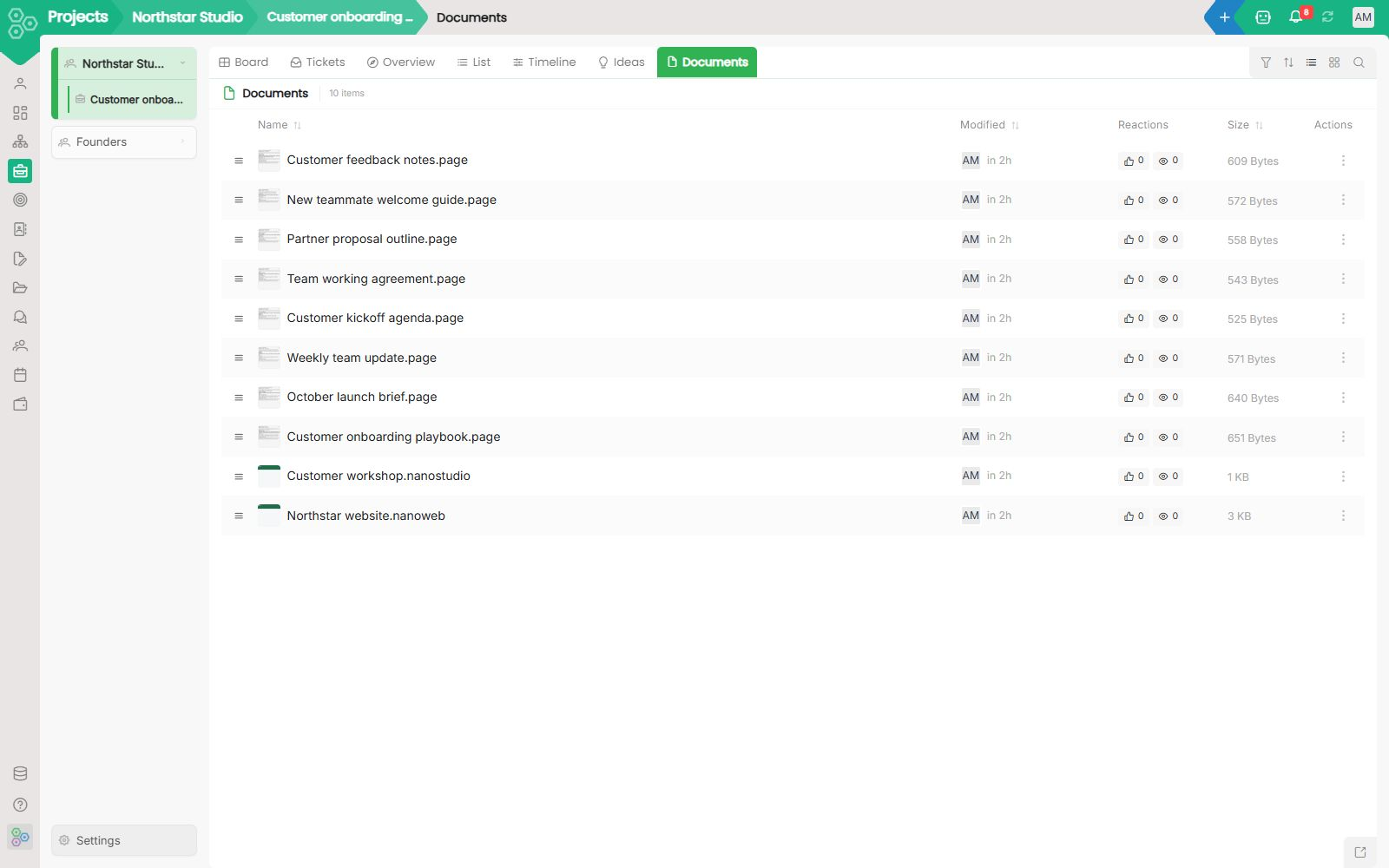
You already pay for cloud storage. The real problem is switching tabs, hunting for files, dealing with version chaos, and re-uploading because other tools can’t access your drive. Worknano Files gives you the best of both worlds: seamless integration with the drives you already use **plus** a powerful native file management system, all unified in one searchable, permission-aware workspace.
What you can edit
Open a file from Files or the record it belongs to and work on it inside your workspace. The available formats depend on which file capabilities your workspace has enabled.
- Documents, spreadsheets and presentations: Word (.docx), Excel (.xlsx) and PowerPoint (.pptx). Open CSV tables too; saving creates an Excel workbook alongside the original CSV.
- PDFs, images and drawings: PDF, SVG, layered PSD images, PNG, JPEG, WebP, TIFF and 2D DXF drawings.
- Raw photos: DNG and camera formats such as CR2, CR3, NEF, ARW and RAF. Developing a camera raw file creates a DNG alongside the original.
- Page layouts: multi-page designs stored as .layout files.
- Video, motion and audio: editable .video, .motion and .audio projects with their linked media. Edit WAV, AIFF and FLAC audio directly; MP3, OGG, Opus, M4A and AAC are saved as a new WAV alongside the source.
- Workspace writing and boards: Markdown (.md), rich text, block pages, whiteboards and website files.
Previewing and editing are different capabilities. For example, GIF and BMP images are preview-only, and a DWG drawing needs to be saved as DXF before it can be edited.
Co-editing — phase 1
Share the work without overwriting someone else’s changes. On supported files, one person edits at a time. Teammates see who is editing and open the file in view-only mode; their copy refreshes when a new version is saved. When the editing session ends, another person can continue. A workspace Head or Founder can take over when needed.
This first phase coordinates editing and handover. It does not yet support several people typing or changing the same file simultaneously.
Ask an AI agent to create or edit a file
The file assistant can create Word documents, Excel workbooks and PowerPoint presentations from your request, an existing template, or workspace records you are allowed to read. Ask for a project brief, a workbook with formulas, or a presentation from your team’s results.
For an existing Word, Excel or PowerPoint file, the assistant can inspect its structure and propose text changes, cell updates or additional slides. Review the proposal and choose Apply to save the changes as a new version. Word edits appear as tracked changes. A proposal remains a proposal until it is applied, and an agent cannot overwrite a file while someone else is editing it.
Agents can also draft workspace text, boards and website content. The file types they can create or change depend on the tools enabled for your workspace; support for manual editing does not mean every format can also be edited by an agent.
Connect your drives in one click
Google Drive, OneDrive, Dropbox, Box and more. Authenticate once and browse everything natively inside Worknano.
- Preview documents, spreadsheets, presentations, images, videos and PDFs without downloading
- Search across all connected drives + native Worknano files at once
- Filter by type, owner, date, or tag
- Share via email, link, or by attaching directly to any record
Native file management + deep module integration
Worknano has its own organized file system where all documents, images, and files created or uploaded across modules are automatically saved in a structured way. Attach a contract to a CRM deal, drop an invoice on an expense record, or upload a receipt, everything stays perfectly organized and context-aware.
Files that understand your work
Files are not a separate silo. They are deeply connected to every module. OCR automatically extracts line items from receipts and populates Finance. Attach files to tasks, projects, candidates, or deals, and they stay linked forever.
Text inside uploaded PDF, Word, Excel and PowerPoint files is searchable by meaning, not just exact words. With semantic search, people and the AI Assistant find the right passage, not only the file name, and the same permissions still apply.
Built for teams that move fast
Bulk upload with drag-and-drop, create new files from templates, automatic folder structures for new projects, per-folder and per-file permissions, and full audit trails on every action.
No migration. Just sync.
Your files stay where they are. Worknano acts as an intelligent, permission-aware window on top of your existing storage. If you ever leave, nothing moves and your team keeps full access.
Examples that work today
New project created → standard folder structure appears automatically.
Contract signed → attached to CRM deal and visible across related records.
Receipt uploaded via mobile → OCR extracts data and populates expense record.
Marketing assets updated → instantly available in branding folder and linked campaigns.
[FAQ-CATEGORY:files]